
Cloud backups are an invaluable source of information whether you download them from the user’s iCloud account or obtain directly from Apple. But why some iCloud backups miss essential bits and pieces of information such as text messages, particularly iMessages? The answer is “end-to-end encryption”, and there’s more to it than just backups.
Where do iMessages go
Apple is known to have one of the best backup systems for mobile devices. Offering the choice of encrypted and unencrypted local backups, permanent and temporary iCloud backups, as well as providing a host of synchronization options (some of which work in parallel to backups), Apple makes every reasonable effort to protect their users’ valuable data.
When analyzing an iPhone backup, you may or may not find the messages (SMS/iMessage). Why does it happen, and can you do anything about it? First, let us see where the messages go, and why.
Local backups
Local backups (the ones made with the iTunes app or Finder in recent versions of macOS) contain the entire iMessage database, complete with text and attachments. If the backup is not protected with a password, the messages are stored in plain sight. If the backup is protected with a password, this will also encrypt the iMessage database.
Conclusion: iMessages always appear in local backups, both encrypted and unencrypted. Access via logical acquisition with Elcomsoft iOS Forensic Toolkit, view with Elcomsoft Phone Viewer.
iCloud backups
Text messages and iMessages may or may not appear in iCloud backups if the Settings – <Apple_ID> – iCloud – Messages toggle is switched on. That toggle enables real-time synchronization of iMessages across devices sharing same Apple ID. If the switch is on, the messages will be synchronized, but not backed up.
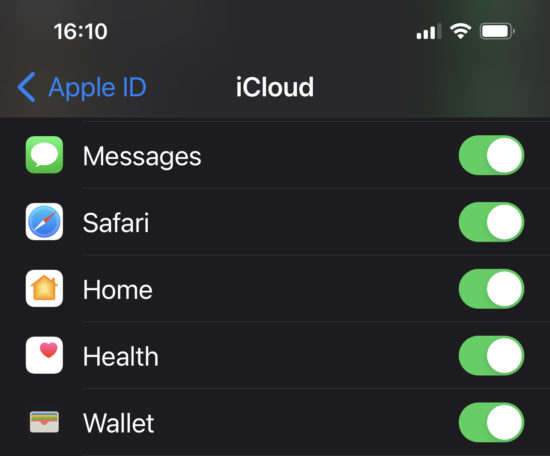
If the option is disabled, you can access the messages by downloading iCloud backups with Elcomsoft Phone Breaker; view with Elcomsoft Phone Viewer. Things get much more interesting if the sync is enabled; more on that in the next chapter.
Conclusion: Apple only stores iMessages in iCloud backups if syncing (the iCloud – Messages option) is not enabled.
More information:
Synchronized data and end-to-end encryption
Once the user enables the “iCloud Messages” toggle on their device, the messages sent and received will be stored in the user’s iCloud account, making it possible to sync iMessage conversations between their iPhone, iPad and Mac devices. If the user deleted a message in the iPhone app, it would be deleted on their iPad, and vice versa. The would be no way to extract such messages remotely, which was probably the case in the infamous Danish mink case.
Once the user enables the toggle, one more thing will happen: the messages will be no longer included in iCloud backups. This is also the case for many (but not all) other types of data that can be either synchronized or backed up. As a result, you will likely not see the iMessages when analyzing iCloud backups downloaded from the user’s account.
Apple protects their users’ personal information such as their browsing history, physical activities and messages with end-to-end encryption. End-to-end encrypted data is protected with a key that, in turn, is protected with another key derived from the user’s screen lock passcode. The whole scheme is designed in a way that even Apple themselves cannot (and explicitly will not, according to the company’s official stance) read any of that data. End-to-end encrypted data includes information from numerous apps such as Health, Messages, Maps, Keychain, and even Safari, making the users’ physical and online activities away from the preying eye.
Apple officially states that the company does not have access to keys protecting end-to-end encrypted data, and thus it cannot decrypt iMessages stored in iCloud. This also applies to information requests the company serves when presented a law enforcement order. According to Apple, “your messages are encrypted on your device and can’t be accessed by anyone without your device passcode”.
Extracting iMessages from iCloud
To extract iMessages from iCloud, you will need an up to date version of Elcomsoft Phone Breaker. We strongly recommend updating to the last build as Apple is constantly changing their proprietary communication protocols.
Before you begin
To extract iMessages from the user’s Apple account, one must be able to both authenticate into the account and decrypt the messages. End-to-end encryption is based on the user’s screen lock passcode, which can be taken from a trusted device registered on the user’s Apple account. It can be an iPhone, an iPad, or even a Mac (the user’s system password will be used in this case). Here’s how Apple defines a trusted device:
A trusted device is an iPhone, iPad, or iPod touch with iOS 9 or later, or Mac with OS X El Capitan or later that you’ve already signed in to using two-factor authentication. It’s a device we know is yours and that can be used to verify your identity by displaying a verification code from Apple when you sign in on a different device or browser. An Apple Watch with watchOS 6 or later can receive verification codes when you sign in with your Apple ID, but cannot act as a trusted device for password resets.
(from Two-factor authentication for Apple ID – Apple Support)
Note that end-to-end encryption is only available for Apple accounts with two-factor authentication enabled, so you will also need to pass two-factor authentication. Therefore, access to iMessages (as well as other end-to-end encrypted data) carries the following requirements:
- The user’s Apple ID and password
- Access to the second authentication factor (SIM card with a trusted phone number, or unlocked iPhone or iPad device registered on the same Apple account)
- Passcode (iPhone/iPad) or system password (Mac) of a trusted device
Steps to extract iMessages from iCloud:
- Launch Elcomsoft Phone Breaker and select Apple > Download from iCloud > Synced Data
![]()
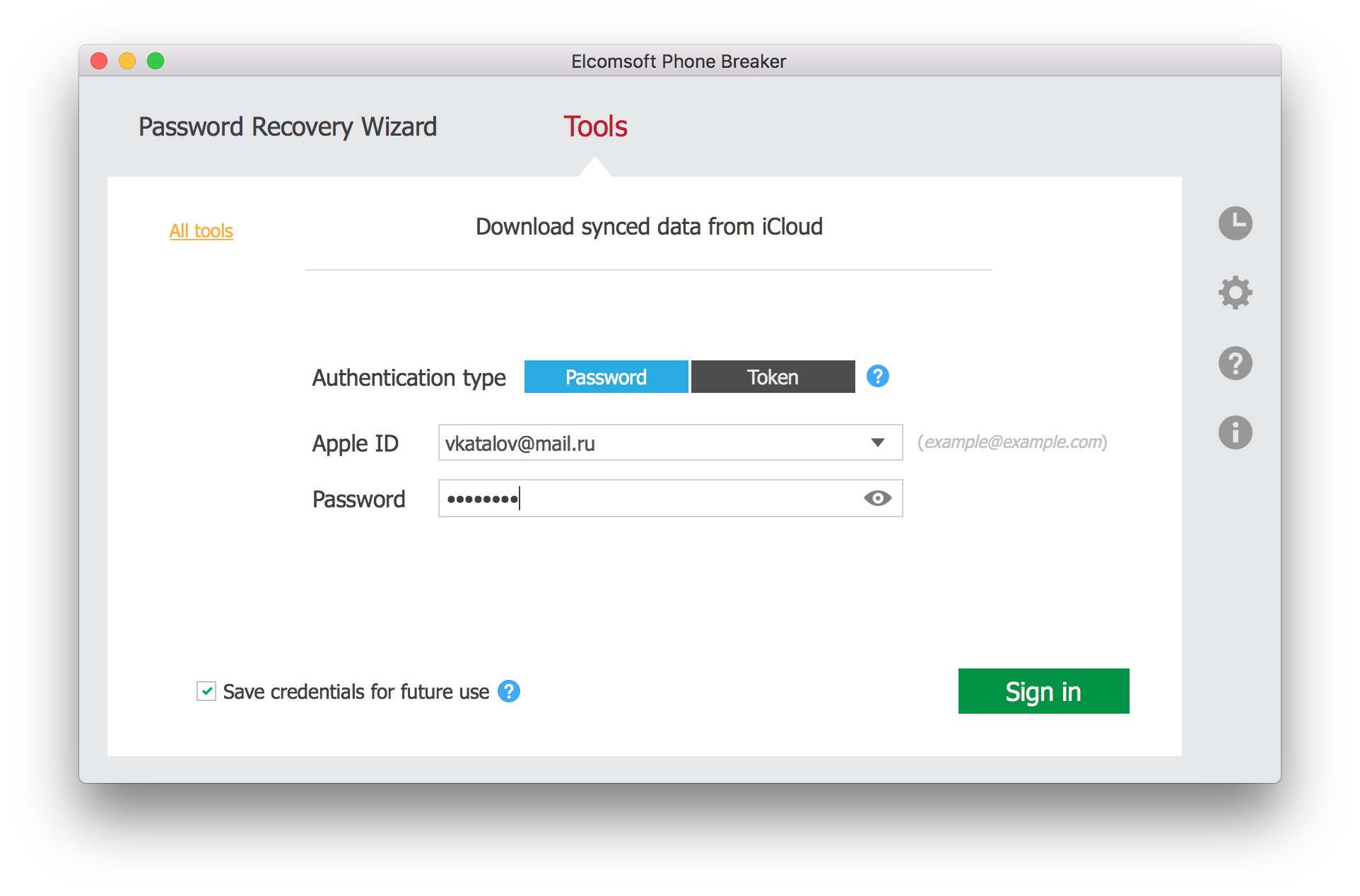
- Specify the user’s Apple ID and password.
![]()
- Provide one-time code to pass Two-Factor Authentication.
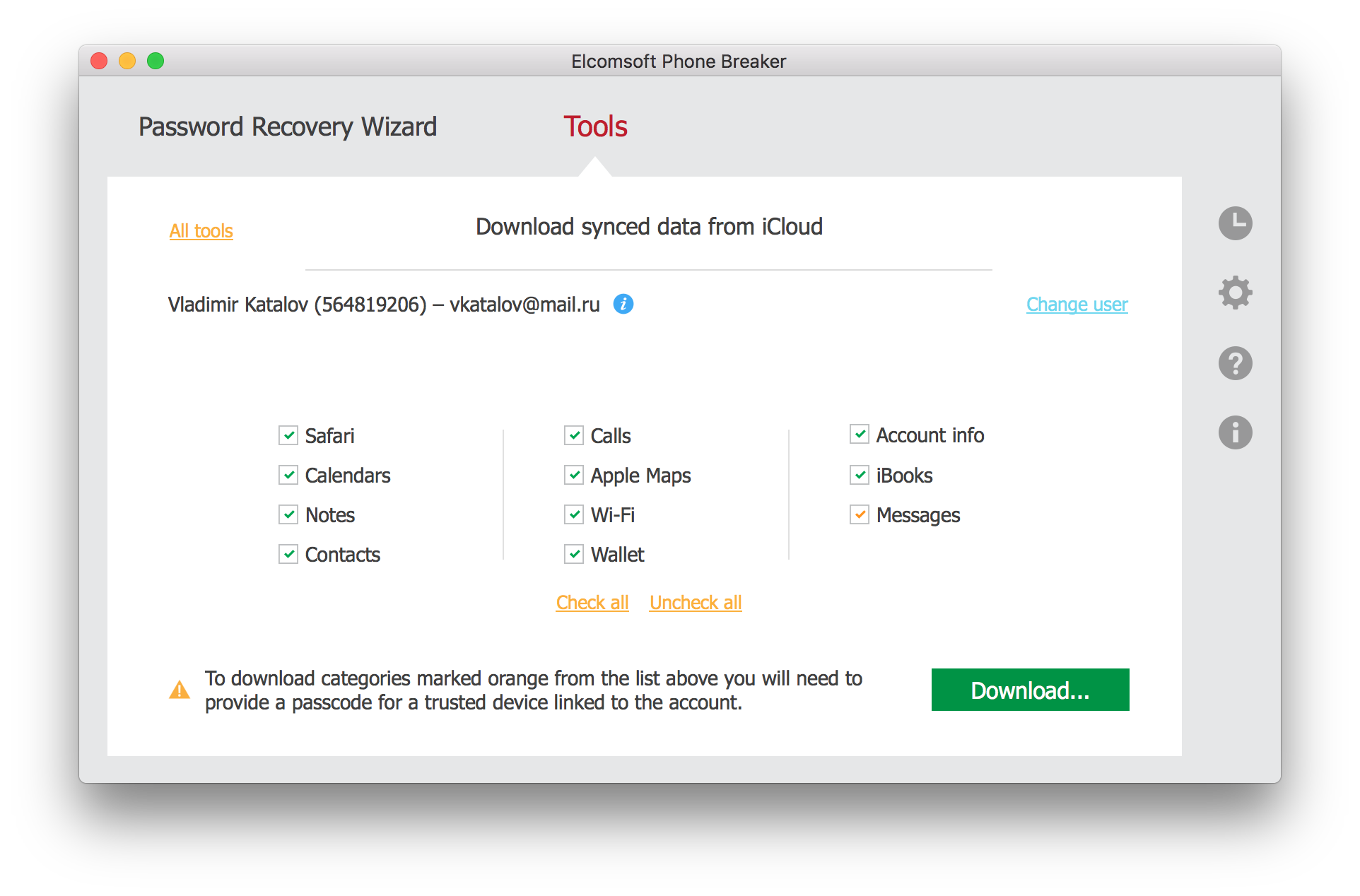
- Select data to obtain from iCloud. Make sure the “Messages” box is selected.
![]()
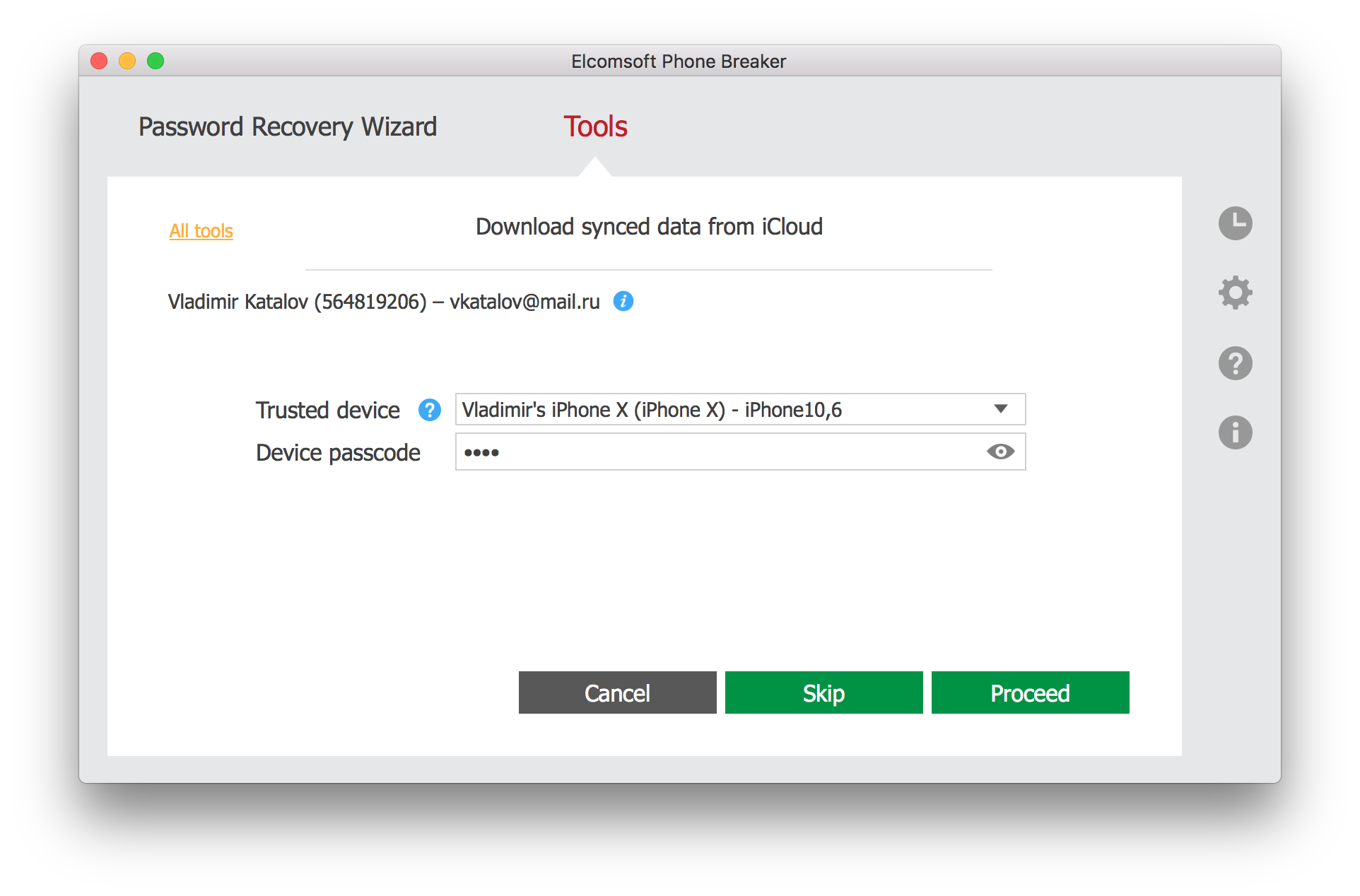
- Elcomsoft Phone Breaker will sign in to the user’s Apple account. Select a trusted devices to which you know the passcode or system password, and type in the passcode/password.
![]()
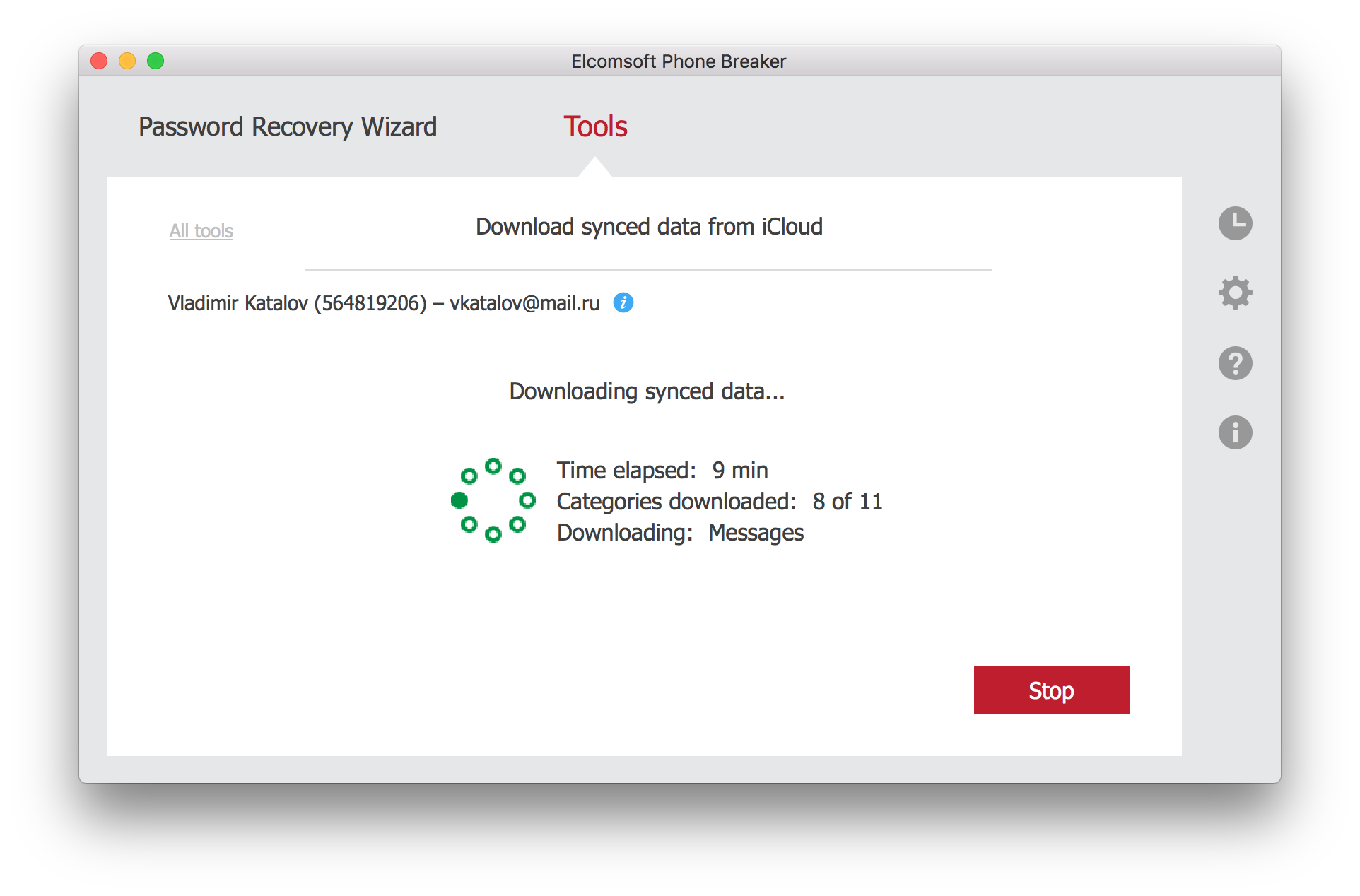
- Messages will download.
![]()
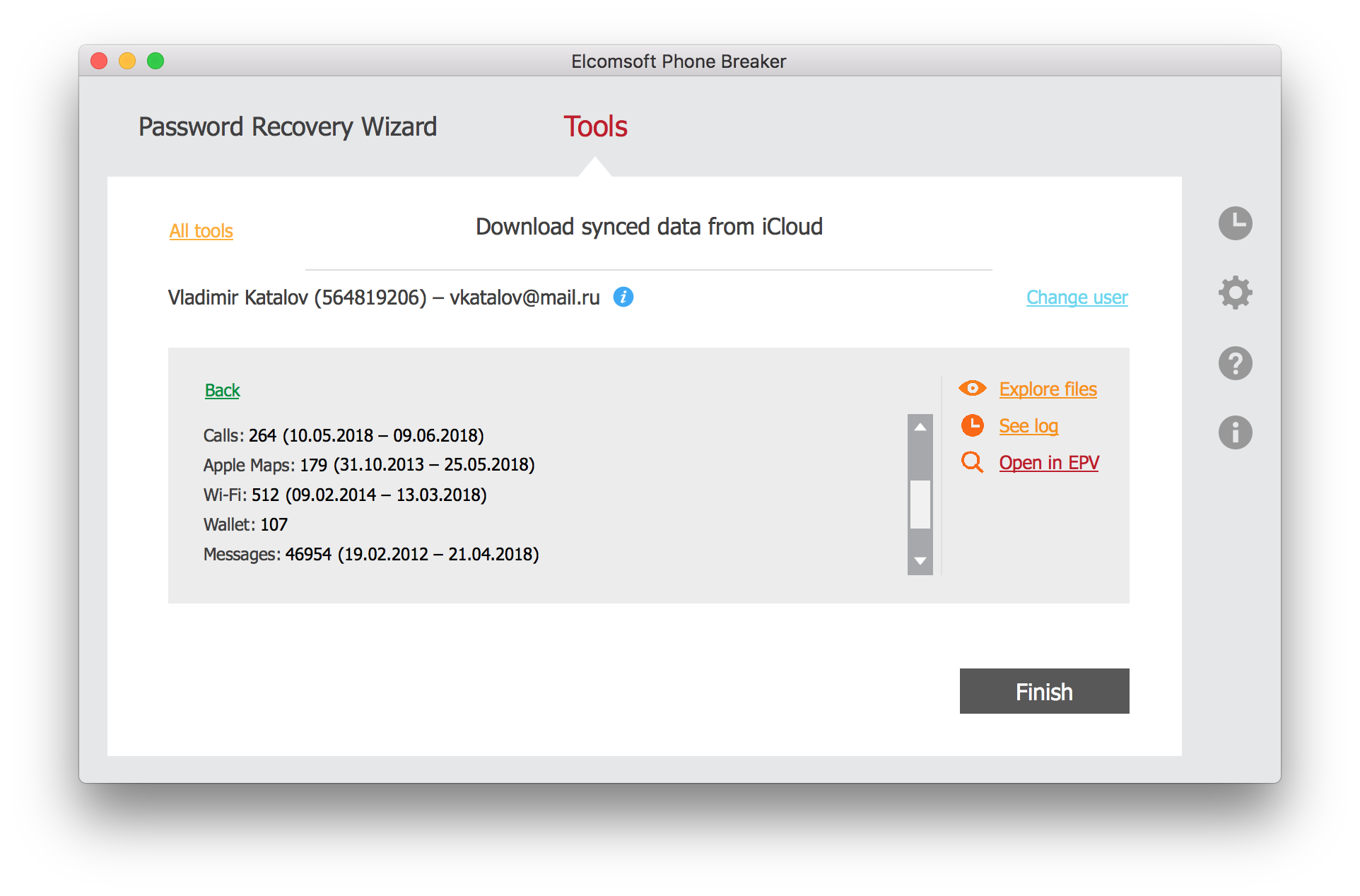
- After the messages are downloaded, click Finish.
![]()
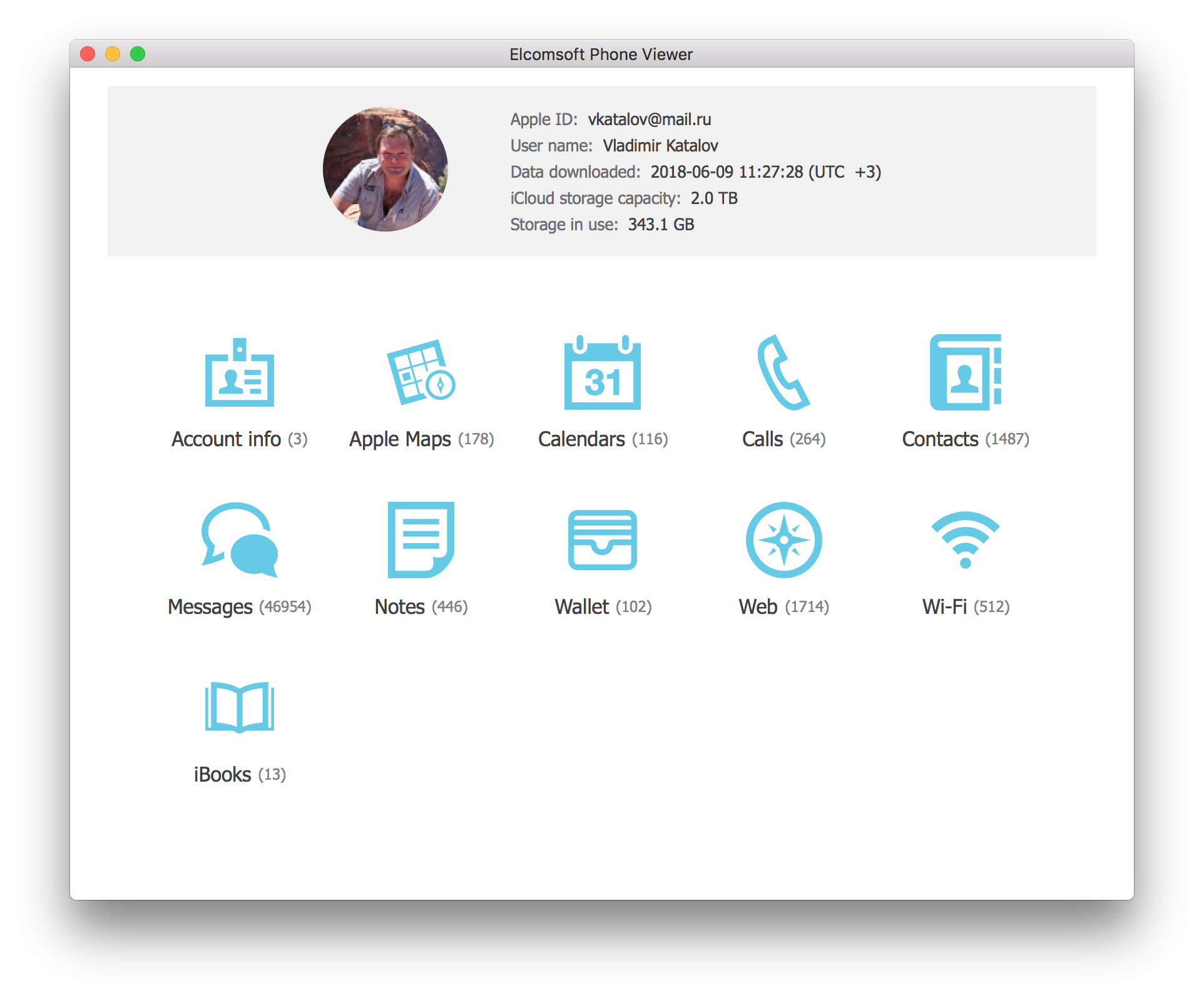
- You can now use Elcomsoft Phone Viewer to analyze downloaded messages.
![]()

Troubleshooting
From time to time, we receive reports that no messages (or only some messages) could be downloaded from a particular users’ account despite the full authentication. The most common reason for this is the sync deficiency on one or several users’ devices. While the message synchronization mechanism is similar to iCloud Keychain, these separate services appear to be interconnected; the iCloud Keychain keeps (and syncs) the encryption key that protects iCloud Messages. Disabling iCloud Keychain on a certain device effectively prevents messages from syncing. A misconfiguration on one or several users’ devices may effectively prevent iMessage sync on those devices. In addition, messages will only sync if 2FA is enabled on the user’s account.
Alternatives to Elcomsoft Phone Breaker
At this time, Elcomsoft Phone Breaker is the only third-party forensic tool that can extract end-to-end encrypted data from Apple iCloud. The only alternative would be logical or low-level extraction of a trusted Apple device, which can be more difficult and time-consuming compared to cloud extraction.
More information: